CSS玩转表单美化,超简单技巧大公开!
想让你的表单更美观、用户体验更佳吗?本文为你带来CSS表单美化技巧大放送!首先,我们将探讨如何使用CSS重置表单的默认样式,解决浏览器默认样式差异问题,例如利用Normalize.css或自定义CSS规则清除边距、内边距和边框,统一字体和背景。接着,我们将深入研究如何设计美观的表单标签(label),定制不同类型的输入框(input)样式,以及优化textarea文本域和美化select下拉选择框。此外,本文还将介绍如何添加表单验证的样式反馈,以及如何让表单在不同设备上自适应,打造响应式表单。掌握这些CSS技巧,让你的表单焕然一新,提升用户填写体验!
要使用CSS重置表单默认样式,第一步是清除浏览器默认样式差异。1. 使用Normalize.css或自定义重置规则,如清除margin、padding、border等属性,并设置字体、背景和颜色继承;2. 针对特定元素如button、input[type="submit"]添加cursor: pointer和移除-appearance样式;3. 对input[type="number"]单独处理,去除上下箭头。通过这些步骤可以实现表单样式的统一和干净起点。
CSS设置表单样式,本质上就是利用CSS的各种属性来控制表单元素的外观,让它们更符合网站的整体设计风格。这不仅仅是简单的颜色和字体调整,更是关乎用户体验的重要一环。
美化表单,让用户填写信息更愉悦。
如何使用CSS重置表单默认样式?
很多浏览器都有自己的默认表单样式,这些样式往往不一致,影响美观和统一性。所以,第一步通常是进行CSS重置。
你可以使用现成的CSS重置文件,比如Normalize.css,它能抹平不同浏览器之间的差异,让你的表单样式有一个更干净的起点。
或者,你可以自己编写简单的重置规则,例如:
input,
textarea,
select,
button {
  margin: 0;
  padding: 0;
  border: none;
  outline: none;
  box-shadow: none;
  font-size: 100%; /* 继承父元素的字体大小 */
  font-family: inherit; /* 继承父元素的字体 */
  vertical-align: baseline; /* 垂直对齐方式 */
  background: transparent; /* 背景透明 */
  color: inherit; /* 继承父元素的颜色 */
}

/* 针对特定元素的一些额外重置 */
textarea {
  overflow: auto; /* 允许滚动条 */
  resize: vertical; /* 允许垂直方向调整大小 */
}

button,
input[type="submit"],
input[type="reset"] {
  cursor: pointer; /* 鼠标悬停时显示手型 */
  -webkit-appearance: none; /* 移除默认样式,兼容webkit内核浏览器 */
  -moz-appearance: none; /* 移除默认样式,兼容firefox浏览器 */
  appearance: none; /* 移除默认样式 */
}

input[type="number"]::-webkit-outer-spin-button,
input[type="number"]::-webkit-inner-spin-button {
  -webkit-appearance: none;
  margin: 0;
}

input[type="number"] {
  -moz-appearance: textfield;
}这段代码清除了input、textarea、select、button等元素的默认边距、内边距、边框等,并设置了一些通用的样式,比如字体继承、背景透明等。 注意input[type="number"]的特殊处理,是为了去除数字输入框的上下箭头,不同浏览器内核的处理方式略有差异。
如何设计美观的表单标签(label)?
label标签是表单中非常重要的组成部分,它不仅提供了文本描述,还增强了表单的可访问性。
- 对齐方式: 常见的做法是将
label放在输入框的左侧或上方。使用display: inline-block可以方便地控制label的宽度和对齐方式。
label {
  display: inline-block;
  width: 120px; /* 固定宽度,方便对齐 */
  text-align: right; /* 右对齐 */
  margin-right: 10px; /* 与输入框之间留出间距 */
}- 字体和颜色: 选择合适的字体和颜色,使其与整体风格协调。
label {
  font-weight: bold; /* 加粗字体 */
  color: #333; /* 深灰色 */
}- 辅助提示: 可以使用
title属性或额外的span标签来提供更详细的提示信息。
- 状态反馈: 使用CSS伪类,例如
:hover、:focus,来提供交互反馈。
label:hover {
  color: #007bff; /* 鼠标悬停时改变颜色 */
}
如何定制不同类型的输入框(input)样式?
不同类型的input元素(文本框、密码框、单选框、复选框等)需要不同的样式处理。
- 文本框和密码框:
input[type="text"],
input[type="password"] {
  width: 200px; /* 设置宽度 */
  padding: 8px 12px; /* 设置内边距 */
  border: 1px solid #ccc; /* 设置边框 */
  border-radius: 4px; /* 设置圆角 */
  box-sizing: border-box; /* 包含内边距和边框 */
}

input[type="text"]:focus,
input[type="password"]:focus {
  border-color: #007bff; /* 聚焦时改变边框颜色 */
  box-shadow: 0 0 5px rgba(0, 123, 255, 0.5); /* 聚焦时添加阴影 */
}- 单选框和复选框: 单选框和复选框的默认样式比较简陋,通常需要自定义样式。一种常见的做法是隐藏原生的
input元素,然后使用label和CSS伪元素来模拟单选框和复选框的外观。
- 文件上传: 文件上传按钮的默认样式也很难看,通常也需要自定义。一种方法是隐藏原生的
input[type="file"]元素,然后使用label和JavaScript来模拟文件上传按钮。
如何优化textarea文本域的样式?
textarea用于多行文本输入,需要注意以下几点:
- 尺寸: 可以使用
width和height属性来设置textarea的初始尺寸,也可以使用resize属性来允许用户调整大小。
textarea {
  width: 300px;
  height: 150px;
  padding: 8px 12px;
  border: 1px solid #ccc;
  border-radius: 4px;
  box-sizing: border-box;
  resize: vertical; /* 允许垂直方向调整大小 */
}

textarea:focus {
  border-color: #007bff;
  box-shadow: 0 0 5px rgba(0, 123, 255, 0.5);
}- 换行: 可以使用
white-space和word-break属性来控制文本的换行方式。
textarea {
  white-space: pre-wrap; /* 保留空格和换行符 */
  word-break: break-word; /* 允许在单词内断行 */
}- 滚动条: 如果文本内容超出
textarea的尺寸,会自动出现滚动条。可以使用CSS来定制滚动条的样式,但需要注意兼容性。
如何美化select下拉选择框?
select下拉选择框的默认样式在不同浏览器之间差异很大,通常需要自定义样式。 一种常见的做法是隐藏原生的select元素,然后使用div和JavaScript来模拟下拉选择框的外观和行为。
选择一个选项VolvoSaabMercedesAudi
如何添加表单验证的样式反馈?
表单验证是提升用户体验的关键环节。 可以使用CSS伪类(例如:invalid和:valid)来根据验证结果显示不同的样式。
input:invalid {
  border-color: red;
}

input:valid {
  border-color: green;
}

input:invalid + .error-message {
  display: block; /* 显示错误提示信息 */
  color: red;
  font-size: 0.8em;
}

.error-message {
  display: none; /* 默认隐藏错误提示信息 */
}结合HTML5的表单验证属性(例如required、pattern、min、max),可以实现简单的客户端验证。
如何让表单在不同设备上自适应?
响应式设计是现代Web开发的必备技能。 可以使用CSS媒体查询来根据屏幕尺寸调整表单的布局和样式。
@media (max-width: 768px) {
  label {
    display: block; /* label独占一行 */
    width: 100%;
    text-align: left;
    margin-bottom: 5px;
  }

  input[type="text"],
  input[type="password"],
  textarea {
    width: 100%; /* 输入框占据全部宽度 */
  }
}
此外,还可以使用Flexbox或Grid布局来创建更灵活的表单布局。
本篇关于《CSS玩转表单美化,超简单技巧大公开!》的介绍就到此结束啦,但是学无止境,想要了解学习更多关于文章的相关知识,请关注golang学习网公众号!
 PHP命名空间教程:手把手教你优雅管理代码结构
- 上一篇
- PHP命名空间教程:手把手教你优雅管理代码结构

- 下一篇
- 豆包AI手把手教你用AI打造超简单ORM框架
-
- 文章 · 前端 | 4分钟前 | javascript · 懒加载 IntersectionObserver 前端队列
- 用 IntersectionObserver 构建可停止的懒加载队列
- 401浏览 收藏
-
- 文章 · 前端 | 18小时前 |
- 前端状态更新频繁时,批处理与去抖分别解决什么
- 227浏览 收藏
-
- 文章 · 前端 | 20小时前 | 前端 · 可访问性 · 焦点陷阱 HTML dialog 焦点恢复 inert 无障碍弹窗
- 可访问弹窗的焦点陷阱、关闭恢复与背景隔离
- 309浏览 收藏
-
- 文章 · 前端 | 22小时前 | 前端 · 性能优化 · javascript · ArrayBuffer postMessage 前端性能 Web Worker Transferable structured clone
- Web Worker 传大数据为何卡顿:复制与 Transferable 对比
- 220浏览 收藏
-
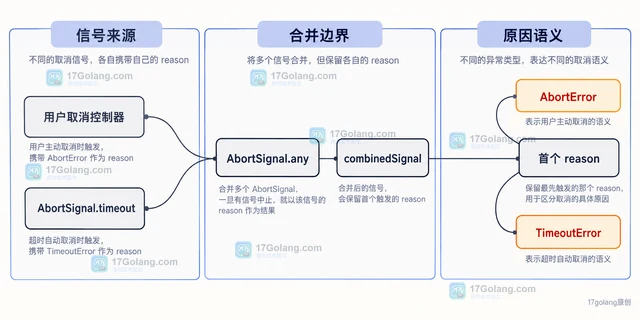
- 文章 · 前端 | 1天前 | 请求超时 Fetch AbortController AbortSignal 用户取消 前端异常处理
- Fetch 请求取消后,超时与用户中断要怎样区分
- 466浏览 收藏
-
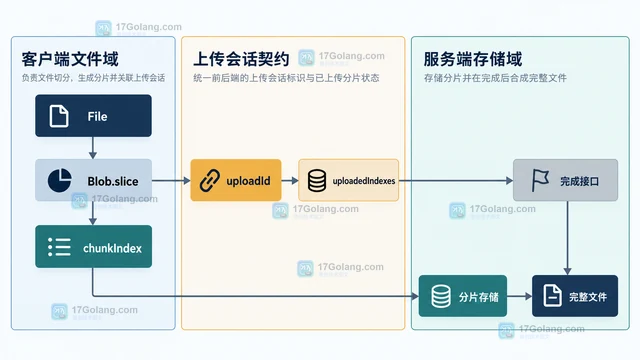
- 文章 · 前端 | 1天前 | 文件上传 · javascript · 前端开发 · 大文件上传 断点续传 XMLHttpRequest Blob.slice 前端分片上传 暂停上传
- 前端上传大文件:分片、暂停与失败续传怎样协作
- 371浏览 收藏
-
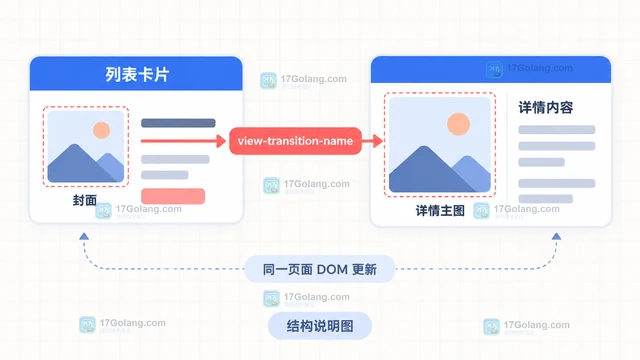
- 文章 · 前端 | 1天前 | 列表详情 View Transition API 前端渐进增强
- View Transition API 做列表到详情过渡的渐进增强
- 385浏览 收藏
-
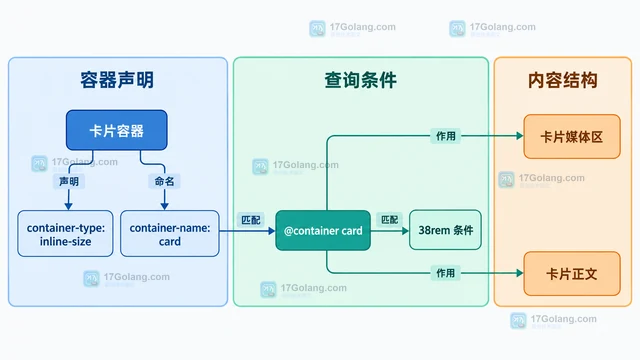
- 文章 · 前端 | 1天前 |
- 用 CSS Container Query 让卡片按容器而不是视口响应
- 289浏览 收藏
-
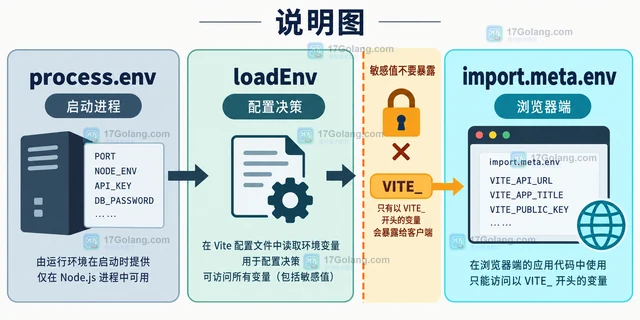
- 文章 · 前端 | 1天前 | 环境变量 vite loadEnv vite.config
- Vite 环境变量为什么在配置加载时取不到
- 133浏览 收藏
-
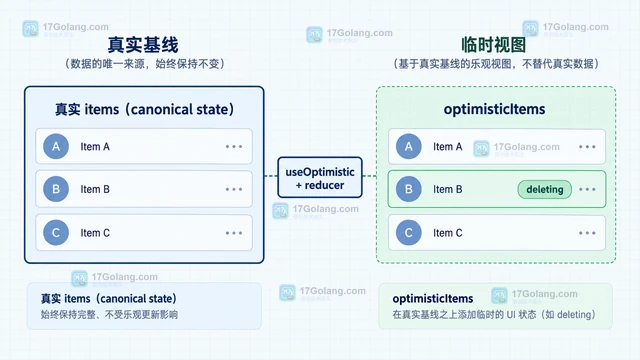
- 文章 · 前端 | 1天前 |
- React useOptimistic 怎么在请求失败时回滚列表
- 153浏览 收藏
-
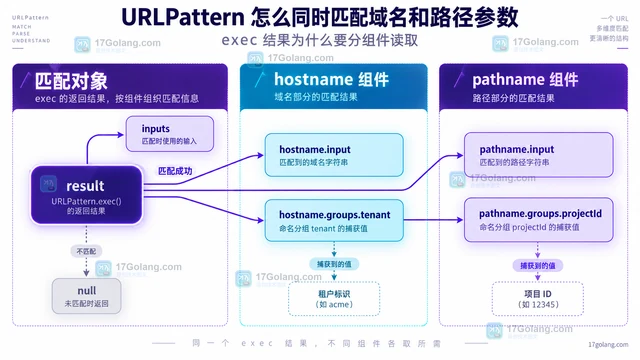
- 文章 · 前端 | 1天前 | 前端开发 · 前端路由 hostname URLPattern pathname
- URLPattern 怎么同时匹配域名和路径参数
- 108浏览 收藏
-
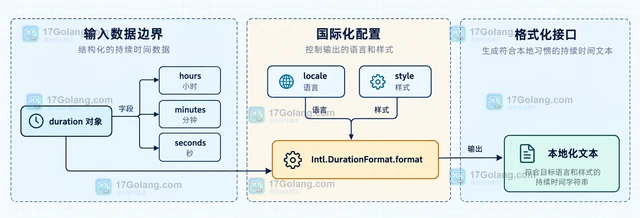
- 文章 · 前端 | 1天前 | javascript · JavaScript Intl.DurationFormat 前端国际化 持续时间格式化
- Intl.DurationFormat 怎么本地化显示持续时间
- 141浏览 收藏
-

- 前端进阶之JavaScript设计模式
- 设计模式是开发人员在软件开发过程中面临一般问题时的解决方案,代表了最佳的实践。本课程的主打内容包括JS常见设计模式以及具体应用场景,打造一站式知识长龙服务,适合有JS基础的同学学习。
- 543次学习
-

- GO语言核心编程课程
- 本课程采用真实案例,全面具体可落地,从理论到实践,一步一步将GO核心编程技术、编程思想、底层实现融会贯通,使学习者贴近时代脉搏,做IT互联网时代的弄潮儿。
- 516次学习
-

- 简单聊聊mysql8与网络通信
- 如有问题加微信:Le-studyg;在课程中,我们将首先介绍MySQL8的新特性,包括性能优化、安全增强、新数据类型等,帮助学生快速熟悉MySQL8的最新功能。接着,我们将深入解析MySQL的网络通信机制,包括协议、连接管理、数据传输等,让
- 500次学习
-

- JavaScript正则表达式基础与实战
- 在任何一门编程语言中,正则表达式,都是一项重要的知识,它提供了高效的字符串匹配与捕获机制,可以极大的简化程序设计。
- 487次学习
-

- 从零制作响应式网站—Grid布局
- 本系列教程将展示从零制作一个假想的网络科技公司官网,分为导航,轮播,关于我们,成功案例,服务流程,团队介绍,数据部分,公司动态,底部信息等内容区块。网站整体采用CSSGrid布局,支持响应式,有流畅过渡和展现动画。
- 485次学习
-
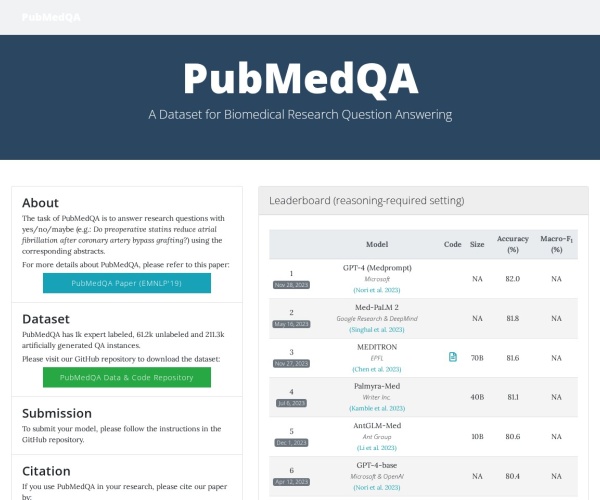
- PubMedQA
- 深入了解PubMedQA生物医学问答数据集,涵盖其核心功能、使用方法及在临床决策、药物研发等场景的应用,助力提升NLP模型性能。
- 375次使用
-
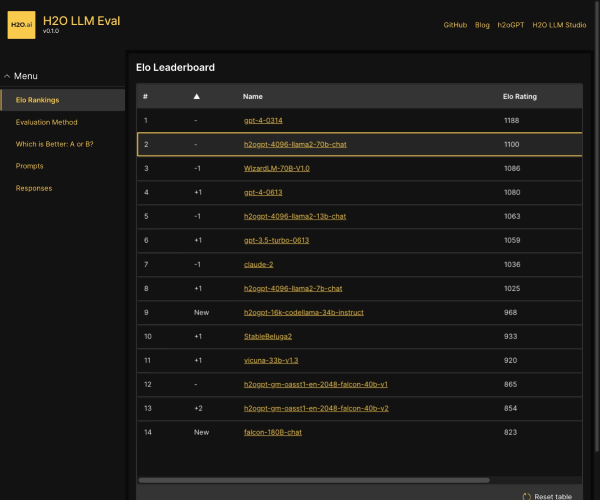
- H2O EvalGPT
- H2O EvalGPT是H2O.ai推出的开源LLM评估平台,提供详细的大模型性能排行榜、行业特定基准测试及A/B测试功能,助您快速选择最适合项目的高性能大语言模型。
- 445次使用
-

- LMArena
- LMArena是加州大学伯克利分校推出的AI模型匿名评测平台。通过盲测投票机制,用户可对比不同大模型回答并生成实时排行榜,助力开发者优化模型及用户选择最佳AI工具。
- 452次使用
-
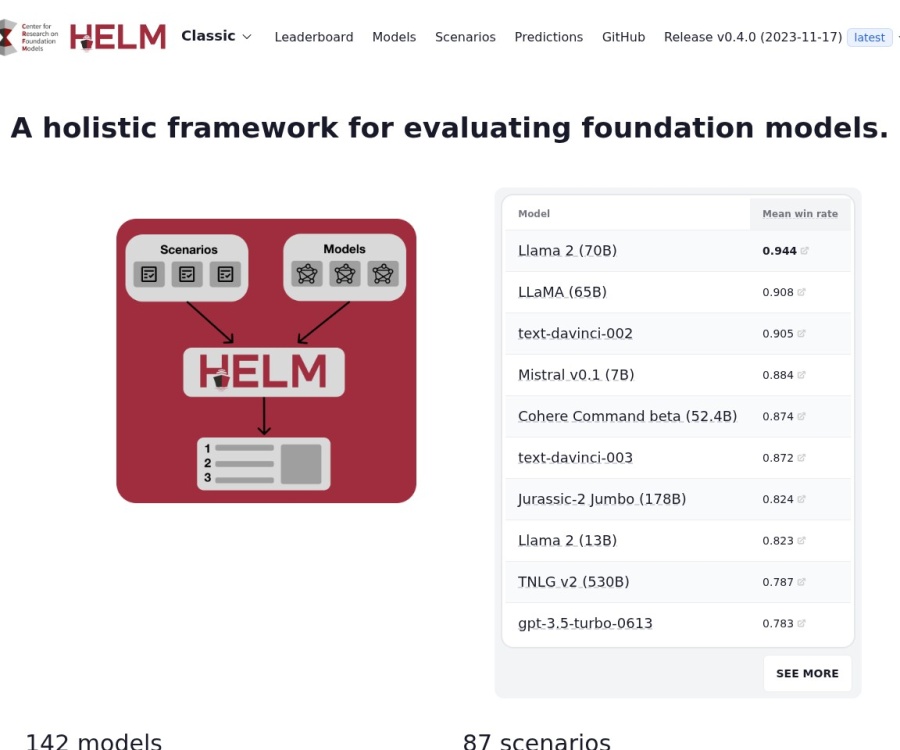
- HELM
- 深入了解斯坦福推出的HELM(Holistic Evaluation of Language Models)大模型评测体系。本文解析其核心功能、安装配置步骤及应用场景,涵盖准确性、公平性、鲁棒性等多维度指标,助力开发者全面优化语言模型性能。
- 398次使用
-
- MMBench
- MMBench是由上海人工智能实验室等机构联合推出的多模态基准测试平台,提供细粒度能力评估、大规模数据集及VLMEvalKit工具。本文详细介绍其核心功能、安装使用方法及应用场景,助力开发者全面评估多模态模型性能。
- 224次使用
-
- JavaScript函数定义及示例详解
- 2025-05-11 502浏览
-
- 智能体安全引领产业升级——国内AI安全产品市场深度分析
- 2026-08-21 501浏览
-
- CSS变量简化按钮悬停效果技巧
- 2026-05-31 501浏览
-
- JavaScript符号类型详解与应用
- 2026-05-31 501浏览
-
- HTML剪贴板复制粘贴怎么用
- 2026-05-26 501浏览